
Xyvezoqral Capabilities: What the System Provides
The following describes the information-handling functions that form the core of the Xyvezoqral service. Each function is explained in terms of what it does and how it supports the overall goal of organised information review.
Six Functions Designed Around Clarity
Xyvezoqral provides six primary functions, each focused on a distinct aspect of information organisation. Together they form a coherent workflow — from receiving and labelling information, through to reviewing it and tracking its history.
These functions are described based on the intended design of the service. They represent what the system is built to do, not a list of independently verified operational benchmarks.
Ask About Specific Capabilities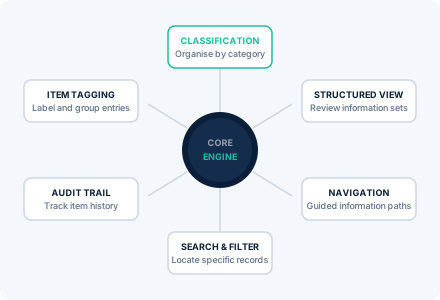
What Each Capability Does
Each function below is described individually. The descriptions cover the purpose of the function, how it operates within the service, and what users can expect from it.
Information Classification
Items within the service are assigned to one or more category groups. This classification process can be performed manually by a user with appropriate access, or it can be guided by the system based on the values present in each item's fields. Once classified, an item appears within the relevant category view and becomes accessible to users navigating that section of the interface.
Structured Review Interface
The service presents information in a structured review layout. Each category section displays a list of items with key field values visible at a glance. Selecting an item opens a full detail view, showing all available fields in a consistent layout. The interface is designed for readability and straightforward navigation between items.
Item Tagging
Beyond formal category assignment, items can receive descriptive tags. Tags operate as a flexible secondary labelling system that does not alter the primary category structure. They are useful for cross-referencing items that share a characteristic not captured by the main classification scheme.
Search and Filter
The search function allows users to locate items by entering values that match one or more fields. Filters narrow the visible item set within a category based on selected criteria. Both tools work on the loaded information set and are intended to help users reach relevant items without manually scanning long lists.
Guided Navigation
The navigation structure of the service is designed to guide users through available categories in a logical order. Rather than presenting a flat list of all items, the interface surfaces the most relevant sections based on the user's current location within the service. Related categories and items are highlighted to support efficient movement through the information set.
Audit Trail
The service maintains a record of changes applied to each information item. This includes updates to field values, changes in category assignment, and additions of tags. Users with access to the audit trail can review the sequence of modifications for any given item, which supports accountability and provides a reliable record of the item's history within the system.
A Typical Sequence of Interaction
The following describes a representative sequence of steps a user might take when working with Xyvezoqral. This is not a fixed workflow but a general illustration of how the functions connect in practice.
Access the Classification View
After logging in, the user navigates to the classification section of the interface to see which category groups are defined and how many items are assigned to each.
Select a Category to Review
The user selects a specific category and is presented with the items assigned to it. Key field values are visible in the list view without needing to open each item individually.
Apply Filters to Narrow the Set
If the category contains many items, the user applies one or more filters to limit the visible set to items matching specific criteria. The list updates immediately.
Open an Item's Detail View
The user selects an individual item to see the full detail panel. All fields and any attached tags are shown in a consistent layout.
Review the Item's History
From the detail view, the user accesses the audit trail for the item to understand what changes have been made and when. This provides a clear account of the item's state over time.
Starting with an Enquiry
Access to Xyvezoqral is not open by default. Users who wish to review the service or request access to a specific information set begin by submitting an enquiry. The support team reviews the request and provides the relevant information needed to proceed.
The enquiry form on the contact page is the starting point for all access-related conversations. The team may ask for clarification about the intended use case to ensure the right level of access is discussed.
Begin an EnquiryWant to Know More?
Read the platform overview for context on how these functions fit into the broader service structure, or send an enquiry to discuss a specific use case.